
Average calculator
Paste numbers in any format and get the mean, median, mode and weighted average, with the working shown step by step.

 By Danielle Valentine · Reviewed by Ozlem Ozturk✓ Fact-checked
Weights can be percentages (30, 20, 50) or counts such as credit hours. They do not need to add up to 100.
How to use the average calculator
- 1Add your numbers
Type them or paste a list. Commas, spaces, tabs and new lines all work, so an Excel column goes in as it is.
- 2Pick the mode
Use simple average for plain lists. Switch to weighted average when some values count more, like exam grades or credit hours.
- 3Press Calculate
This panel switches to your results, with the mean at the top and the median, mode, range and standard deviation below it.
- 4Check or copy
Open the step-by-step solution to see the math, then copy the results into your notes or homework.
Step-by-step solution
Step-by-step solution
What is an average?
An average is one number that stands in for a whole list. When people say “average” they almost always mean the arithmetic mean: add the values, then divide by how many there are.
Mean and average are the same thing in everyday use. In statistics, “average” is a wider word that also covers the median (the middle value) and the mode (the most common value). This calculator gives you all three, because the right one depends on your data. The NIST Engineering Statistics Handbook defines all three.
How to find the average
The average formula:
average = (x₁ + x₂ + … + xₙ) / n
Three steps:
- Add all the numbers together.
- Count how many numbers there are.
- Divide the total from step 1 by the count from step 2.
Example: the average of 12, 15 and 21
| Sum | 12 + 15 + 21 = 48 |
| Count | 3 |
| Average | 48 / 3 = 16 |
The same method works for 3 numbers or 3,000. For long lists, paste them into the calculator above instead of adding them by hand.
Mean, median and mode: which one should you use?
All three describe the middle of a list, and they give different answers when the data is uneven.
Five people earn $38,000, $41,000, $44,000, $47,000 and $250,000. The mean is $84,000, which is more than four of the five people make. The median, $44,000, describes this group far better. One large value pulls the mean toward it, while the median only looks at which value sits in the middle. Our guide to mean vs median explains when to report each one.
| Measure | How to find it | Best for |
|---|---|---|
| Mean | Sum divided by count | Fairly even data, like test scores or daily temperatures |
| Median | Sort the list and take the middle value | Data with a few extreme values, like salaries or house prices |
| Mode | The value that appears most often | The most common answer, like the shoe size a store sells most |
When a list has an even count, the median is the average of the two middle values. For 3, 5, 8 and 10, the median is (5 + 8) / 2 = 6.5.
The range is the largest value minus the smallest. It shows how spread out the list is, and the mean, median, mode and range calculator returns all four at once.
How to calculate a weighted average
A weighted average gives some values more say than others. Grades are the usual case: a final exam worth 50% should move your result more than homework worth 20%.
Weighted average formula:
weighted average = Σ(value × weight) / Σ(weight)
Example: homework 90 (20%), quizzes 80 (30%), final exam 70 (50%)
| Homework | 90 × 20 = 1,800 |
| Quizzes | 80 × 30 = 2,400 |
| Final exam | 70 × 50 = 3,500 |
| Totals | 7,700 and 100 |
| Weighted average | 7,700 / 100 = 77 |
The plain average of 90, 80 and 70 is 80. The weighted result is 77 because the lowest score has the biggest weight. Switch the calculator to Weighted average to do this with your own grades. Weights can be percentages or counts, like credit hours, and they do not need to add up to 100. For grades with more parts, the weighted average calculator adds rows as you type.
How to average percentages
You can only average percentages directly when each one comes from the same total. If the totals differ, work with the raw numbers.
Say you scored 90% on a 10-point quiz (9 points) and 60% on a 100-point exam (60 points). The simple average of 90% and 60% is 75%, but that treats a 10-point quiz like a 100-point exam. Your real score is (9 + 60) / (10 + 100) = 69 / 110 = 62.7%.
In the calculator, use Weighted average: enter each percentage as the value and its point total as the weight. The average percentage calculator does the same job and shows the simple and weighted results side by side.
How to calculate an average in Excel and Google Sheets
Both use the same functions. For a worked example with SUMPRODUCT, see how to calculate a weighted average in Excel.
- Plain average:
=AVERAGE(B2:B11) - Average that skips zeros:
=AVERAGEIF(B2:B11,">0") - Weighted average:
=SUMPRODUCT(B2:B4,C2:C4)/SUM(C2:C4), where column B has the values and column C the weights - Median:
=MEDIAN(B2:B11) - Mode:
=MODE.SNGL(B2:B11)
Google Sheets also has =AVERAGE.WEIGHTED(B2:B4,C2:C4), which does the weighted average in one step.
AVERAGE ignores empty cells and text but counts zeros, as Microsoft’s AVERAGE function reference explains, and our test of 20 data sets found that Excel and Google Sheets both work this way. If a blank cell should count as zero, type 0 in it. To check a spreadsheet result, copy the column and paste it into the calculator above.
Common mistakes when finding an average
Leaving out zeros
A missed quiz scored 0 still counts toward the total and the count. Removing it makes the average look higher than it is.
Averaging averages
If one class of 10 students averaged 70 and another class of 30 averaged 90, the combined average is 85, not 80. The second class has three times as many students, so it needs three times the weight.
Ignoring outliers
One very large or very small value can drag the mean far from the typical value. If the calculator shows a big gap between mean and median, report the median or both.
Mixing units
Averaging minutes with hours, or dollars with cents, gives a meaningless number. Convert everything to one unit first. For lap times or shifts, the average time calculator converts hours, minutes and seconds for you.
Why choose our average calculator?
What you get with this free average calculator:
- Paste numbers straight from Excel, Google Sheets or a PDF. Commas, spaces and new lines all work.
- Every answer shows the working: the formula, the sum, the count and the median, using your own numbers.
- One list gives you the mean plus 10 more results, including the median, mode, range and standard deviation.
- Weighted average mode handles grades, credit hours and any list where some values count more.
- Your numbers stay in your browser. Nothing is uploaded or saved.
- Free to use
- No sign-up
- Step-by-step working
- Weighted average
- Works on mobile
Frequently asked questions
What is the formula for average?
Average = sum of the values / number of values. For 4, 8 and 9, that is 21 / 3 = 7.
Is mean the same as average?
In everyday use, yes. In statistics, “average” can also mean the median or mode, so papers usually say “mean” to be exact.
How do you find the average of 3 numbers?
Add the three numbers and divide by 3. For 12, 15 and 21: 48 / 3 = 16.
How do you calculate an average percentage?
If every percentage has the same total, add them and divide by the count. If the totals differ, add the raw scores, add the totals, and divide the first by the second. You can also use the weighted average mode.
Can an average be negative?
Yes. The average of -4, 2 and -7 is -9 / 3 = -3. The geometric and harmonic means only work when every value is above zero, so the calculator leaves them blank for lists with zeros or negatives.
What is the difference between sample and population standard deviation?
Use population (divide by n) when your list includes every member of the group, such as all 24 students in one class. Use sample (divide by n – 1) when the numbers stand in for a larger group, such as 50 customers surveyed out of thousands. Our sample and population standard deviation calculator gives both results with the working.
Can I paste a column from Excel or Google Sheets?
Yes. Copy the cells and paste them into the box. Each cell lands on its own line, and new lines count as separators just like commas and spaces.
Is the average calculator free?
Yes. There is no sign-up and no limit on how many numbers you enter.
Explore our other calculators
 Average percentage calculator
 Average time calculator
 Degrees of freedom calculator
 Exponential Regression Calculator
 Five Number Summary Calculator
 Histogram maker
 IQR calculator
 Linear regression calculator
 Mean, Median, Mode and Range Calculator
 Outlier Calculator
 Pie Chart Maker
 Probability Calculator
 Standard deviation calculator
 Sum of Squares Calculator
 Variance calculator
 Weighted average calculator
Our latest blogs
New guides on averages, spread and spreadsheet functions. See every article on the blog.
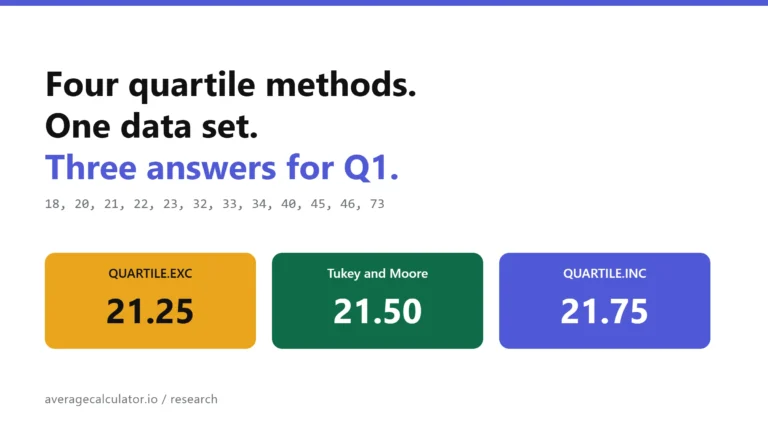
Four quartile methods, one data set, three answers for Q1
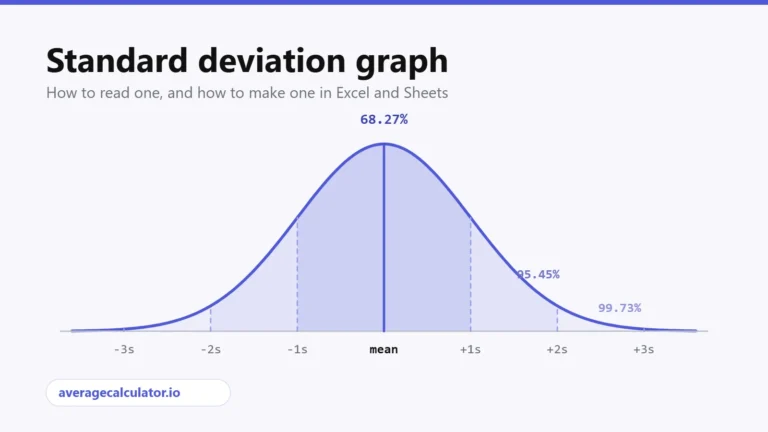
Standard deviation graph: how to read one and how to make one
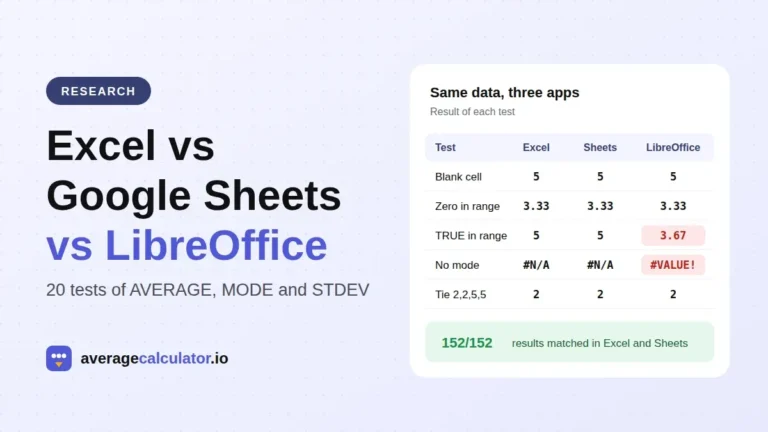
Excel vs Google Sheets vs LibreOffice: how average functions handle blanks, zeros and text
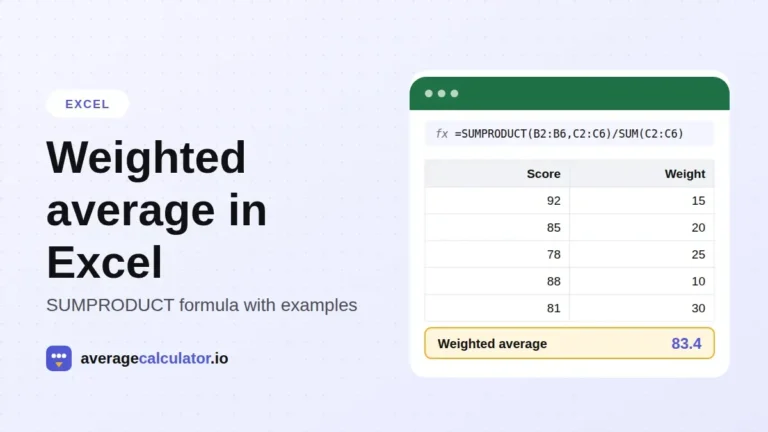
How to calculate a weighted average in Excel, with examples
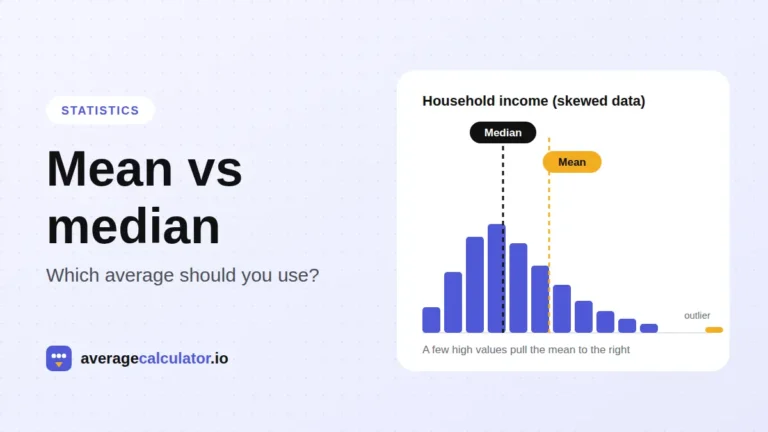
Mean vs median: which average should you use?
Who made this calculator
Spotted a mistake in this calculator? Tell us the numbers you used and what you expected, and we will check it.
Report an error